Dual Monitor Setup for Narrow Rooms: 7 Simple Steps
Your “office” might be a hallway nook, a bedroom corner, or a desk squeezed between a wall and a window. You still need more screen space. A dual monitor setup sounds like a luxury for people with big rooms, but it can work in tight spaces too. The trick is to plan the layout before you buy anything. Screens that look small in a store can feel huge on a shallow desk. This guide walks you through seven simple steps, from measuring your space to hiding the cables. You don’t need a big budget or special skills. You need a tape measure, a little patience, and a clear idea of how you actually work every day.
Why bother with two screens at all? They let you keep a video call on one display and your documents on the other, so you stop jumping between windows. If you want some background, Wikipedia’s overview of multi-monitor computer setups explains how the idea works. In a narrow room, though, the stakes are different. Every centimeter counts, and a bad layout can leave you twisting your neck or bumping your knees. A good dual monitor setup in a small space follows three rules: keep the screens close to your natural line of sight, keep the desk surface free, and keep everything easy to adjust. The steps below follow those rules. If you want to dig deeper, our guide on Best Budget Desk Setups for Remote Workers covers this in more detail.
Narrow desk ideas to try before you buy a second screen
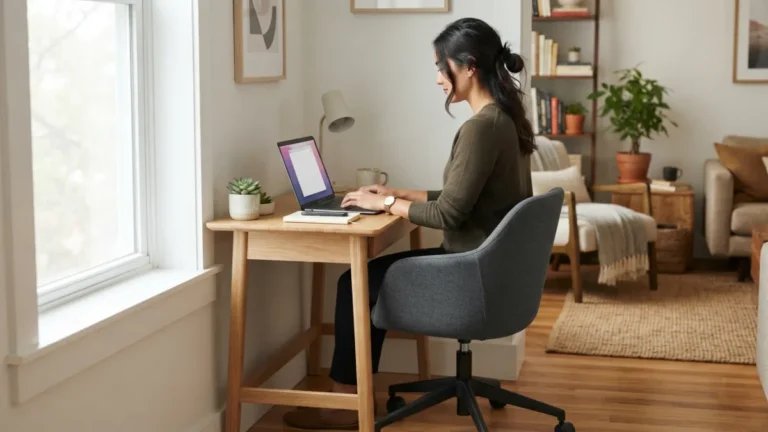
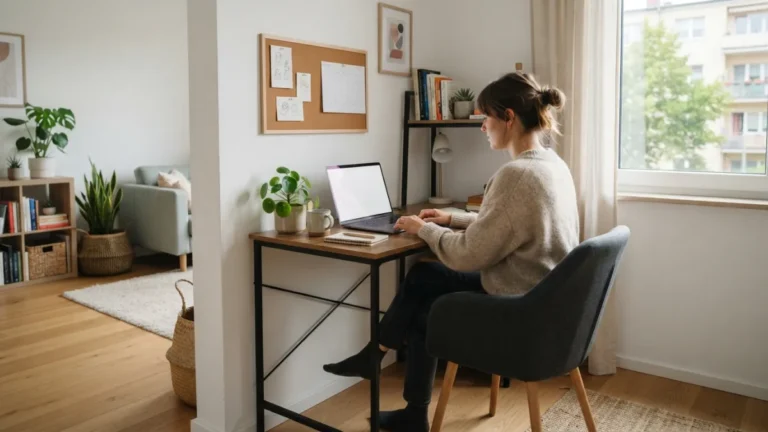
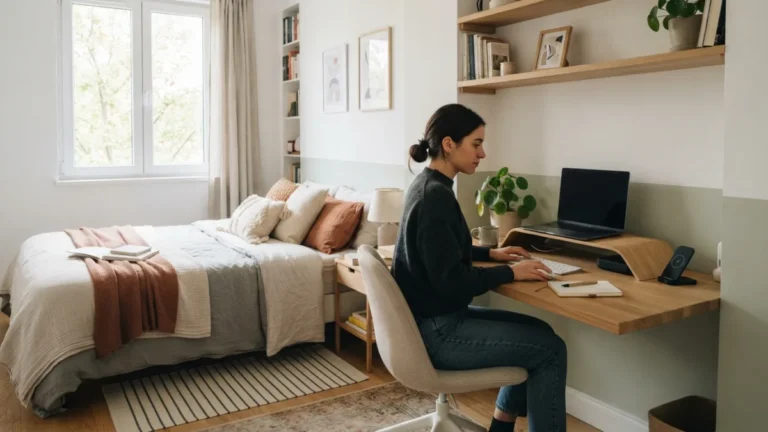
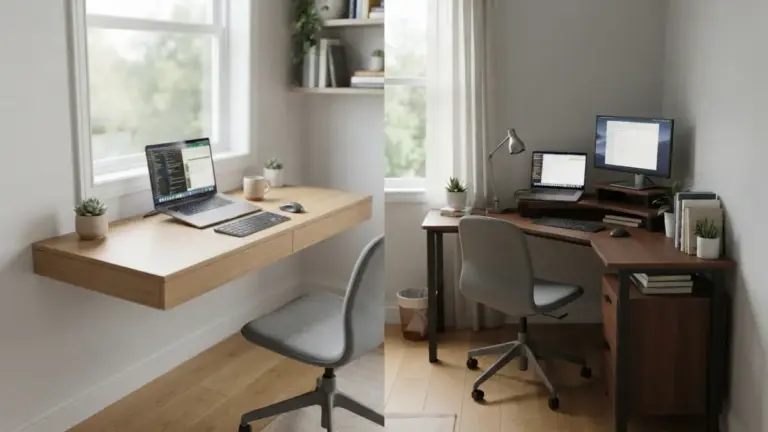
Start with the furniture, because the right desk can matter more than the right monitor. Smart narrow desk ideas often cost less than a new screen. Push your desk against the longest wall so the walkway stays clear. If the room is really tight, a wall-mounted fold-down desk or a slim console table can turn dead space into a workstation. Pick a desk with open legs so your knees and chair have room to move. Keep drawers off the work surface and put storage on a small cart or shelf behind you. Mount a floating shelf above the desk for notebooks and a lamp. Reserve the desktop for what you touch every hour: keyboard, mouse, and screens. A clear surface keeps a dual monitor setup from feeling crowded.
The 7 steps to a dual monitor setup in a narrow room
Step 1: Measure first to find the best monitor size small room desks allow
Grab a tape measure and write down three numbers: desk width, desk depth, and the distance from your chair to the wall in front of you. Two screens side by side take up their combined width plus the frames around them, so add it up before you shop. Then think about depth. A very large screen on a shallow desk sits too close to your face and tires your eyes. Cut two pieces of cardboard or paper to the screen sizes you are considering and tape them to the wall at desk level. You will see right away whether the layout fits. Two matching, mid-sized screens usually work better than one giant display and one tiny one, because windows look the same as you drag them across.
Step 2: Add a monitor arm for narrow desk setups
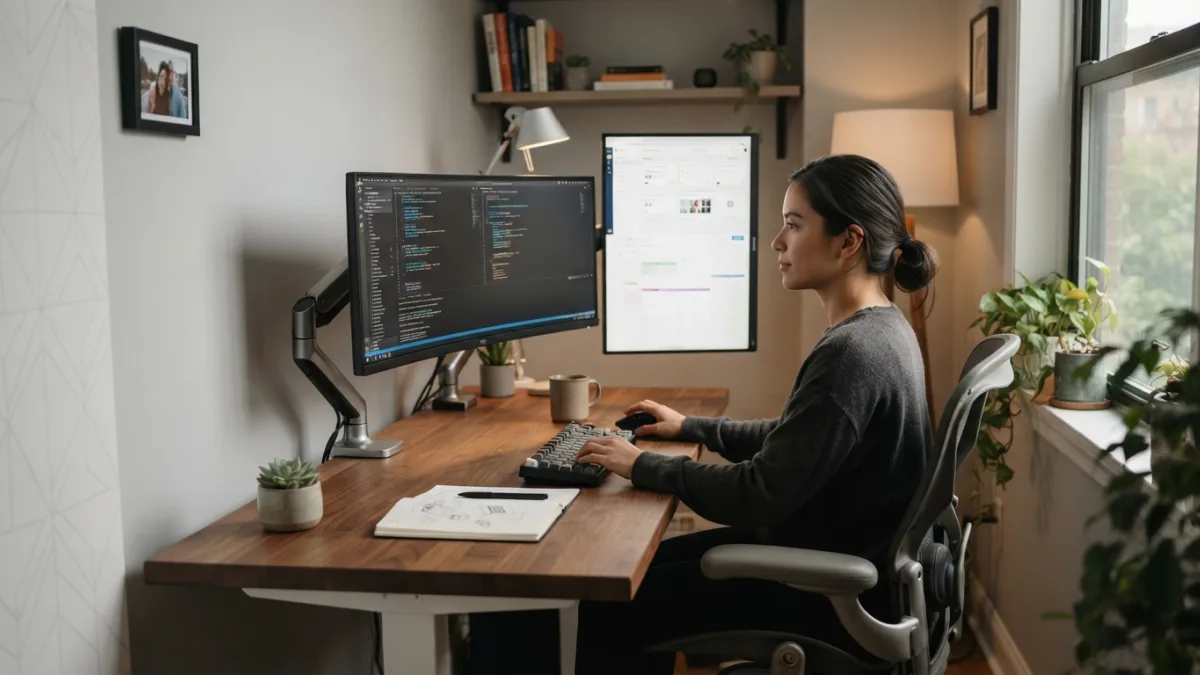
Stock monitor stands have wide feet that eat up precious desk space. A monitor arm lifts the screens off the surface and frees room for your keyboard, notes, and coffee. Most arms clamp to the back edge of the desk or fit through a hole in it. Before you buy, check three things: the thickness of your desk, the weight limit of the arm, and whether your monitors have a mounting pattern on the back called VESA. Thin or glass desks may not hold a clamp safely, so read the instructions carefully. A single pole with two arms keeps the footprint small. It also lets you slide each screen sideways, which is handy when your dual monitor setup shares a wall with a door or window. This connects closely with another common issue — see Small Home Office: 7 Best Desk Ideas to Save Space for more on that.
Step 3: Get your ergonomic monitor height right
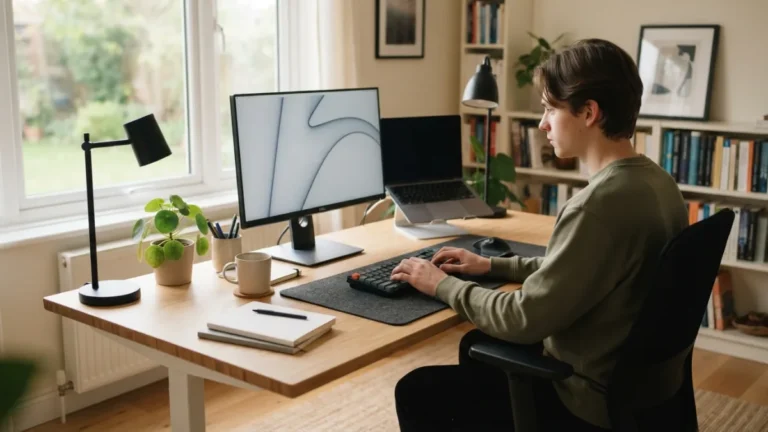
Even a beautiful layout fails if it hurts your neck by Friday. Good ergonomic monitor height means the top of the screen sits at or slightly below eye level, so you look slightly down at the middle of the display. OSHA’s computer workstation guidance covers monitor position, along with chair and keyboard tips. Sit at about an arm’s length from the screens and tilt them back a little to cut glare. If you use one screen most of the time, center it in front of you and angle the second one beside it. If you use both equally, let them meet in the middle, right in front of your nose. If you feel regular pain, talk to a health professional.
Step 4: Check your extend display settings
Once the hardware is in place, tell your computer how to use it. The right extend display settings make the two screens act as one big workspace instead of showing the same picture twice. Follow these steps:
- On Windows, open Settings, choose System, then Display, and select “Extend these displays” under the multiple displays option.
- On a Mac, open System Settings (or System Preferences on older versions), choose Displays, and use the arrangement options.
- Drag the screen icons so they match the real position of your monitors. If they don’t, your mouse will jump in the wrong direction.
- Pick your main display, where the taskbar or menu bar lives, and set the same scaling on both screens.
Step 5: Use a laptop docking station
If you work from a laptop, a laptop docking station can simplify your desk. One cable connects the laptop to both monitors, power, keyboard, and mouse, so you can sit down and leave in seconds. You can read how docking stations work in general. Before you buy one, check your laptop’s specifications, because not every laptop can drive two external screens through a single port. Look at the video outputs and the manufacturer’s notes. Place the dock under the desk or behind a screen so it takes no working space. Many people also close the laptop lid and raise it on a small stand, which saves even more room. That frees the desk for the two displays that matter. You might also find our article on Cable Management Hacks: 7 Easy Tips for a Tidy Desk helpful here.
Step 6: Try vertical monitor orientation for the second screen
Narrow rooms often have more height than width, so use it. A vertical monitor orientation turns one screen into a tall portrait display that takes much less width than a landscape one. It works well for long documents, web pages, code, email, and chat windows. Keep video calls, spreadsheets, and design work on the landscape screen in front of you. Check that your stand or arm can rotate the screen, since many can. Then change the orientation to portrait in your display settings, or the picture will lie on its side. Put the portrait screen on the side closest to the wall, and your dual monitor setup will stay compact while still giving you plenty of room to read.
Step 7: Use cable management desk tricks to clear the clutter
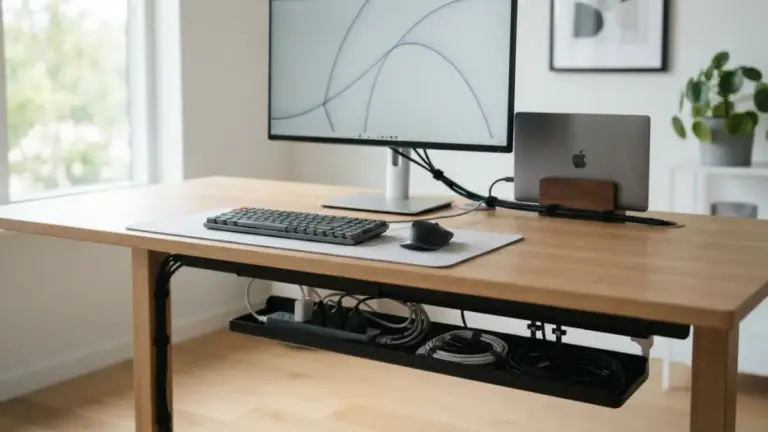
Two screens mean more cables, and loose cables look worse in a small room because you see them everywhere. A few cable management desk habits fix most of the mess. First, run cables along the monitor arm and secure them with small clips. Second, bundle the extras with reusable hook-and-loop ties instead of zip ties, so you can change things later. Third, mount a power strip under the desk and attach a cable tray or basket behind it. Leave a little slack so the arms can still move freely. Finally, label each plug so you know which cable is which. Here is a quick checklist:
- Clips along the arm and desk edge
- One power strip, mounted out of sight
- Reusable ties, not zip ties
- Labels on both ends of each cable
Make your dual monitor setup work for the long run
You now have seven steps and a plan that fits a tight space. Measure, choose the right sizes, lift the screens on an arm, set the height, adjust your software, simplify with a dock, rotate one display if it helps, and hide the cables. Don’t expect perfection on the first day. Work a full day, notice where your neck, eyes, or elbows complain, and make small changes. Move a screen a few centimeters, tilt it, or swap which one is your main display. A dual monitor setup is not a fixed project. It is a layout you tune until it feels natural. Small rooms demand good habits, and good habits turn a squeezed corner into a real workspace. For a related walkthrough, check out Space Saving Desks: 10 Best Picks for Tiny Offices.
FAQ: Dual Monitor Setup in Narrow Rooms
Can I build a dual monitor setup on a very small desk?
Yes, in most cases. Use a clamp-on arm to lift the screens off the surface, and choose two compact monitors that fit within your desk width. Measure first and test sizes with paper templates.
Should both monitors be the same size?
It isn’t required, but matching sizes feel more comfortable. Windows move between screens without changing shape, and the layout looks tidier. If you mix sizes, line up the tops or the centers of the screens.
Do I need a laptop docking station?
Not always. Some laptops can connect directly to two monitors. A dock helps when your laptop lacks ports or when you want one cable for everything. Check your laptop’s video output limits first.
Is vertical monitor orientation a good idea for everyone?
No. It suits reading, coding, and chat, but it is awkward for video and wide spreadsheets. Try it on your second screen and keep your main screen in landscape.
How far should my screens be from my eyes?
About an arm’s length is a good starting point. Put the top of the screen at or just below eye level, then adjust slightly until your neck and eyes feel relaxed.