Password Manager and VPN: 7 Best Tips for Remote Work
Your kitchen table is now part of your company’s network. That small shift changes how you need to protect your work, your clients, and your own accounts. A password manager and VPN are two of the simplest tools you can add, and most people can set up both in a single afternoon. They won’t make you invincible, but they close the gaps that attackers use most often. This guide walks through seven practical tips, explains how each tool works in plain language, and shows how to build habits that last. You don’t need a technical degree. You need a little time, a few good settings, and the willingness to change a few bad habits.
What Makes Remote Work Such an Attractive Target
Work from home security is harder than office security because you lose the safety net. At the office, IT teams manage the network, the firewall, and often the devices too. At home, you may share a router with a smart TV, a game console, and a roommate’s old laptop. Your work laptop might also double as your shopping machine on weekends. Attackers know this, and they go after the weakest link, which is often a reused password or an unprotected connection. They also know that people working alone feel pressure to answer messages quickly, so a convincing fake email is more likely to work. The goal is not to turn your home into a fortress. It is to remove the easy openings. If you want to dig deeper, our guide on Slack vs Microsoft Teams: Best Pick for Remote Work 2026 covers this in more detail.
Why a Password Manager and VPN Work Better Together
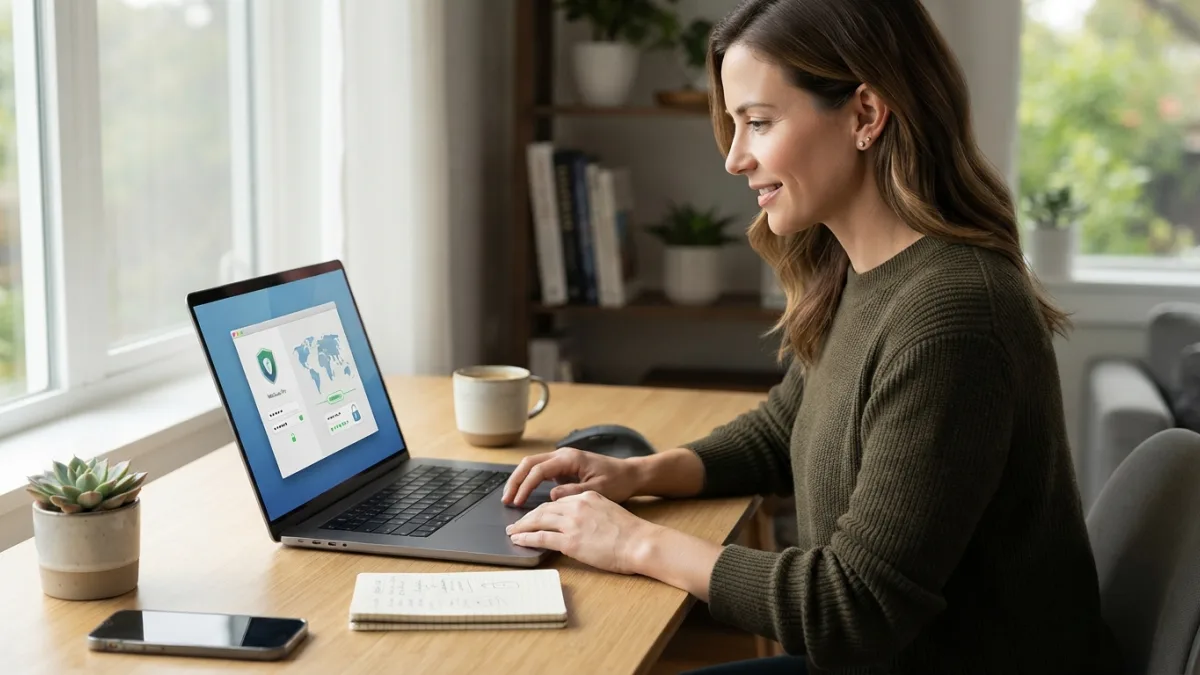
These two tools solve different problems, which is exactly why they pair so well. A password manager protects your logins. It creates a unique, strong password for every account and fills it in for you, so one leaked password can’t unlock everything else. A VPN protects your connection. It encrypts the data traveling between your device and a VPN server, which makes it much harder for someone on the same network to spy on you. If you use only a password manager and VPN’s encryption is missing, your traffic may be exposed on a shared network. If you use only a VPN, weak passwords still leave the front door open. Together, they cover both the account and the road it travels on. For a deeper background on the technology, Wikipedia’s overview of virtual private networks is a useful starting point.
Seven Tips to Lock Down Your Home Office
Tip 1: Pick the Best Password Manager for Your Needs
The best password manager is the one you will actually use every day, so start with ease of use. Look for apps that work on all your devices, offer browser autofill, and let you share logins safely with teammates if you need that. Check that the company explains how it encrypts your vault and that it supports two-step login for your own account. Ask your employer first, because many companies already provide an approved tool, and using it keeps work and personal logins separate. Once you choose, create one long master password, such as a phrase of several unrelated words, and never use it anywhere else. Then move your most important accounts over first: email, banking, and anything tied to work.
Tip 2: Add Two Factor Authentication to Every Important Account
Two factor authentication adds a second proof of identity on top of your password. Even if a thief steals your password, they still need that second step to get in. Turn it on for your email first, since a hacked inbox lets attackers reset your other accounts. Then add it to work apps, cloud storage, and financial services. An authenticator app or a physical security key is generally stronger than a text message code, though a text code is still far better than nothing. Save your backup codes somewhere safe, such as inside your password manager or printed and stored in a drawer. The U.S. Cybersecurity and Infrastructure Security Agency explains the basics on its Secure Our World page. This connects closely with another common issue — see Focus Timer Apps: 7 Best Picks for ADHD Remote Workers for more on that.
Tip 3: Choose a VPN for Remote Employees You Can Trust
A VPN for remote employees should do one job well: keep your traffic private between your device and your work systems. If your company provides a VPN, use it exactly as instructed, and don’t switch it off to speed things up. If you are choosing a personal VPN for your own use, be careful. A VPN provider can see your traffic, so trust matters more than flashy promises. Look for a clear privacy policy, transparent ownership, and independent security audits. Be wary of free apps that don’t explain how they make money. Also remember the limits: a VPN doesn’t stop phishing emails, malware, or a weak password. It protects the connection, and nothing more.
Tip 4: Set Up a Secure Home WiFi Network
Your router is the front door to everything at home, so a secure home wifi network is worth ten minutes of attention. First, change the default admin password on the router itself, not just the WiFi password. Next, choose the strongest encryption your router supports, usually WPA3 or WPA2, and set a long, unique WiFi password. Install firmware updates, or turn on automatic updates if the router offers them. Many routers also let you create a guest network. Put smart speakers, cameras, and visitors’ phones there, and keep your work laptop on the main network. That way, a cheap, poorly protected gadget can’t easily reach your work files.
Tip 5: Practice Public WiFi Safety Away From Home
Working from a café or airport is tempting, but public wifi safety takes some planning. Anyone can set up a fake hotspot with a believable name, so confirm the exact network name with staff before you join. Turn off automatic connection to open networks, and avoid logging into sensitive accounts unless you must. If you do work on public WiFi, turn on your VPN before you open anything important. Websites that use HTTPS give you some protection, but a VPN adds another layer. When the work is sensitive, such as contracts or payroll, use your phone’s hotspot instead. It is often safer than a shared network, and it keeps your session under your control. You might also find our article on AI Productivity Tools: 7 Best Picks for Remote Workers helpful here.
Tip 6: Follow Phishing Protection Tips Every Day
Good phishing protection tips come down to slowing down. Attackers rely on urgency, so be suspicious of messages that demand instant action, such as a “locked account” or an “urgent invoice.” Check the sender’s full email address, not just the display name. Hover over links to preview where they lead, and when in doubt, open the website yourself instead of clicking. Your password manager helps here too: if it doesn’t offer to fill in your login on a page, the site may be a fake. Never share codes from your authenticator app with anyone. If something feels wrong, report it to your IT team right away. Quick reports protect your coworkers as well. See CISA’s cybersecurity best practices for more guidance.
Tip 7: Keep a Remote Work Security Checklist
A remote work security checklist turns good intentions into routine. Review it once a month, or whenever you change devices, routers, or jobs. It keeps your password manager and VPN settings from drifting out of date, and it takes only a few minutes. Here is a simple version to start with:
- Update your operating system, browser, and apps.
- Confirm your password manager is locked with a strong master password.
- Check that two-step login is active on email, work, and banking accounts.
- Test that your VPN connects before you start work.
- Lock your screen whenever you step away.
- Back up important files to an approved location.
- Review router settings and connected devices.
Make Your Password Manager and VPN a Daily Habit
Security tools only help if you use them consistently. Think of your password manager and VPN as part of your morning routine, like opening your email or making coffee. Start small: move your top five accounts into the manager this week, turn on two-step login, and test your VPN. Next week, tidy your router settings. The week after, run through your checklist. Small steps add up faster than you expect, and they leave you far less exposed than the average remote worker. You can’t remove every risk, but you can make yourself a harder target than the next person. That is often enough to send attackers looking elsewhere. For a related walkthrough, check out Remote Work Tool Stack: 7 Best Free Picks for 2026.
Frequently Asked Questions
Do I need both a password manager and VPN for remote work?
In most cases, yes. They protect different things. A password manager keeps your accounts safe with strong, unique logins, while a VPN protects the connection your data travels over. Using both a password manager and VPN covers more risks than either tool alone.
Is a free VPN safe enough for work?
Be careful. A VPN provider can see your traffic, so you need to trust it. Some free services earn money in ways that may hurt your privacy. For work, use the VPN your employer provides, or choose a paid service with a clear privacy policy.
Is a password manager really safe to use?
Reputable password managers encrypt your vault, and they are generally safer than reusing passwords or storing them in a notes file. Protect yours with a long master password and two-step login, and keep the app updated.
Does a VPN protect me from phishing?
No. A VPN encrypts your connection, but it can’t tell whether an email or website is fake. You still need to check senders, avoid suspicious links, and use two-step login on important accounts.
What should I do first if I can only make one change today?
Turn on two-step login for your email account. Email is the key to resetting many other accounts, so protecting it gives you the biggest security gain for the least effort. Then set up a password manager.